This guide provides a deep dive into an individual creator's profile, offering all the data needed for brand safety analysis, performance reviews, and creator decisions.
In this article:
- Creator Profile Header
- Roster Summary
- Audit Status & Monitoring
- Brand Safety Analysis
- Violations Overview
- Performance Metrics
Creator Profile Header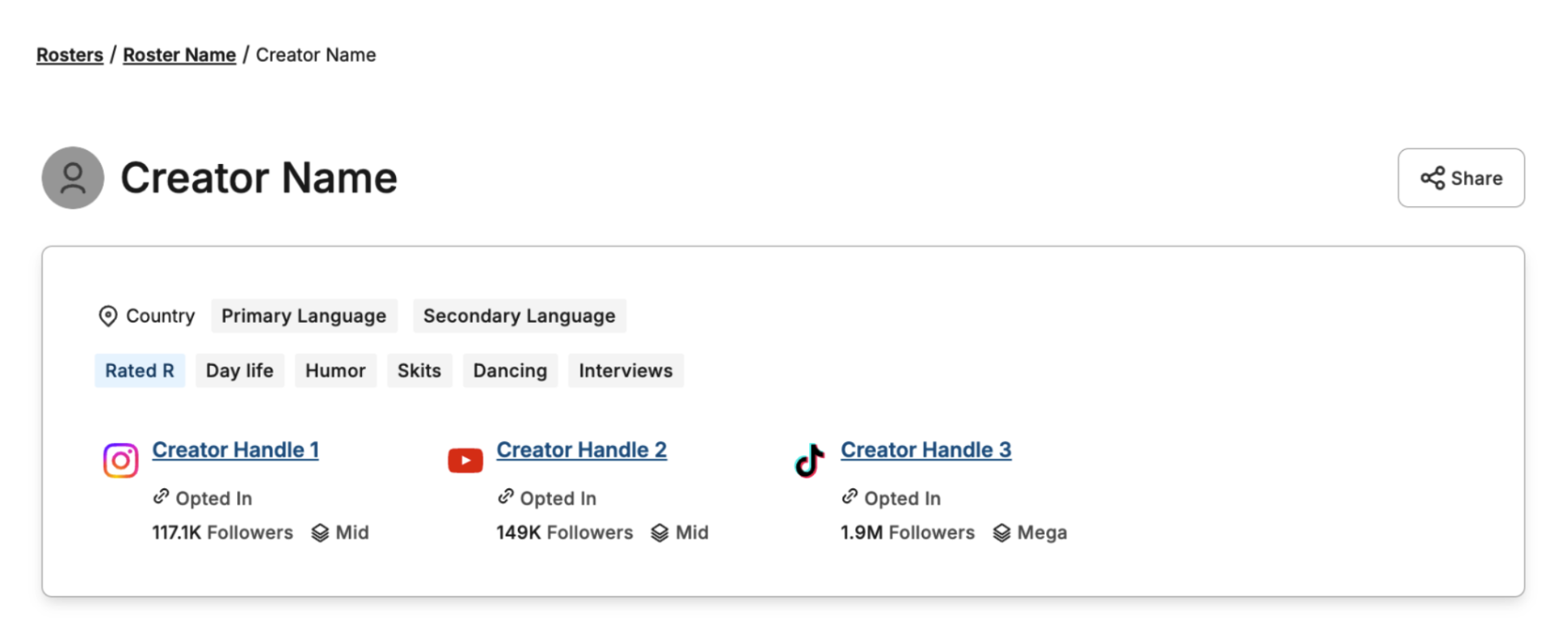
At the top of the page, you'll find the creator's main profile information:
- Creator Details: The creator's name, profile picture, country, primary and secondary languages, and main content styles.
- Share Button: Allows you to easily share the creator's profile with other stakeholders.
- Creator Handles: A list of the creator's social media handles. Each handle displays the platform, follower count, influencer tier (e.g., Mid, Mega), and current opt-in status.
Roster Summary
This section gives you a high-level view of the creator's standing in the rosters they are a part of.
- Roster Summary: A snapshot of how many rosters the creator is a part of and their status within them: Accepted, Pending Review, Remediation, or Rejected.
Audit Status & Monitoring
Below, the Audit Status tracker visually displays the creator's progress through the brand safety process, from Processing to Monitoring. This feature keeps you informed of the creator's current stage.
Note: Accepting a creator does not automatically move them into Monitoring. The creator remains in their current audit status. You can start Monitoring once the creator is Accepted and their audit status is Audit Complete.
Start monitoring a creator
- Open the creator’s Brand Safety tab.
- Confirm that the creator is Accepted and their audit status is Audit Complete.
- Click Start Monitoring.
- Confirm the change in the pop-up.
The creator’s audit status changes to Monitoring. While Monitoring is active, new posts containing violations continue to be audited. The change is also recorded in Action History.
Brand Safety Analysis
This section is the core of your decision-making process. After the creator audit is complete, a summary of the findings is presented here:
- Action Bar: When a creator's status is "Remediation" or requires a decision, an action bar will appear. Based on the violation data, you can choose to Accept Creator or Reject Creator for inclusion in the specific roster.
- Analysis Summary: A brief summary shows the total number of posts analyzed and the total number of posts found with violations.
Violations Overview
This section provides the detailed data breakdown behind your brand safety decisions using two distinct views: Default View (counts) and Risk View (percentages). To switch between them, use the "Display Risk View" toggle in the top-right corner of this section.
Default View (Counts)
In the default view, you will see absolute numbers for all violations.
- Violation Totals: A summary of the total posts with and without violations.
- Violation Categories: A breakdown of violations by category (e.g., Profanity, Alcohol). Each category shows the exact number of violating posts and the date of the most recent violation.
-
Audit Progress Bar: During the "Audit In Progress" stage, this bar appears. It shows the percentage of the audit that is complete and provides a near-real-time breakdown of posts review status: Accepted (green), Remediation (blue), Rejected (red), and Pending (purple).
Risk View (Percentages)
Using the "Display Risk View" toggle, you can switch to a percentage-based analysis. This view is designed for a quicker assessment of a creator's overall risk profile.
- Key Metrics: This view highlights the percentage of Posts Without Violations, Posts Pending Review, and Posts At Risk.
- Violation Categories: Each category displays the percentage of the creator's analyzed content that falls into that violation category.
Important: A single post can fall into multiple violation categories (e.g., a post could contain both Profanity and Hate Speech). Because of this overlap, the percentages do NOT sum to 100%.
Performance Metrics
This section quantifies the creator's reach and audience reception on a per-platform basis. You can switch between their different social handles using the tabs provided.
- Followers: The creator's total number of followers on the selected platform.
- Engagement Rate: The calculated engagement percentage for their content.
- Sentiments: A sentiment analysis of the creator's content, showing the breakdown of Positive, Negative, and Neutral sentiment from the audience.